TEACHING YEAR TEN

I am currently on deployment to Hinchley Wood School.
Below you can click on the links to see key information about the school.
Certain resources on this page may not be visible to you. View the Security Policy of this Teaching File site to learn more about the measures I take to protect sensitive data.
ENTRY000-29/10/25
Craig and Dave Playlist
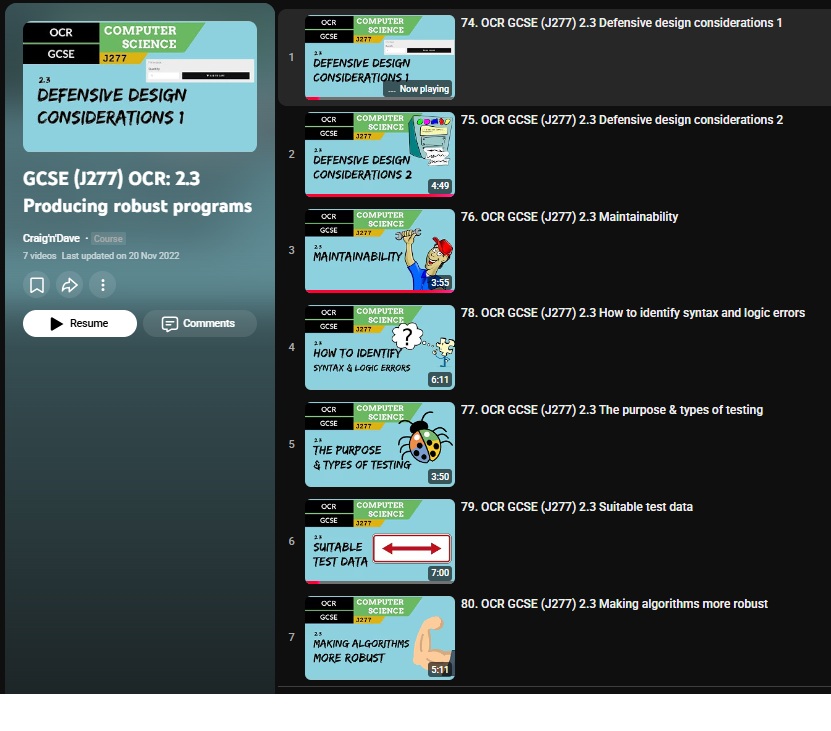
Craig and Dave provide a playlist on YouTube which contains 7 videos. These form the basis of the lessons taught in school.
The first two videos are about general defensive design considerations.
I have set up a special page for my preparations, which you can visit by clicking here.
.
Below you can click on the links to see key information about the school.
Certain resources on this page may not be visible to you. View the Security Policy of this Teaching File site to learn more about the measures I take to protect sensitive data.
ENTRY000-29/10/25
School Policies
Various school policies can be viewed below.
ENTRY000-dd/mm/yy
Special Education Needs (SEN) Information
Certain resources on this page may not be visible to you. View the Security Policy of this Teaching File site to learn more about the measures I take to protect sensitive data.
If a link returns 403, first visit Activate Access.
Seating Plans
Certain resources on this page may not be visible to you. View the Security Policy of this Teaching File site to learn more about the measures I take to protect sensitive data.
If a link returns 403, first visit Activate Access.
Class Lists
Certain resources on this page may not be visible to you. View the Security Policy of this Teaching File site to learn more about the measures I take to protect sensitive data.
If a link returns 403, first visit Activate Access.
Creating a Lanyard Timetable
How do you create a miniature lanyard to go around your neck? It is a small card that fits inside your access card holder.
What is the most effective way of doing this? There has to be a better way than simply trial-and-error. The way I did it first was by screenshotting the timetable on Google Sheets, pasting the image into Word, and then printing it off. You then manually test it. If it fits into the ID card holder, then well done. If it is too large, make the image on Word slightly smaller.
The process of printing, testing, and readusting repeats. When you need to print a new version, you repeat the process. Surely there is a better way.
Click here for a the word document created.
Click here for a the PDF document created.
If a link returns 403, first visit Activate Access.
Viewing Grades at HWS
MCO showed me how to click the "filter" icon.
Go to the folder entitled "Computer Science Dept [KS3]". Make sure you are on the KS3 folder.
Go to the tab entitled simply "7" (in the bar at the bottom).
Look at the columns carefullly: you should see one entitled Teaching Group.
9B
Click this hyperlink to view my instructions for how to view and manipulate student homework grades.
Click here for a the word document created.
Click here for a the PDF document created.
If a link returns 403, first visit Activate Access.
ENTRY002-16/10/25
Would you like to see Lesson Plans? Please visit my Professional Notes.
Would you like to see Assessment Schema? Please visit my Professional Notes.